Introduction
A while back I realized that you can’t do serious cybersecurity work in 2026 without understanding AI. Not as a nice-to-have, but as a baseline. So I made it part of my goals. And one of the first things I wanted to get right was running models locally, on my own hardware, under my own control. No cloud, no subscriptions, no data leaving my network. Let me show you what that looks like.
Local LLMs
As already covered in my last two posts (1 and 2), an LLM is a type of AI model trained on massive amounts of text to understand and generate human language. When you use Claude, your messages travel to Anthropic’s servers, get processed there, and come back. Running locally means the model lives on your own hardware, your CPU and GPU do the work, and nothing leaves your machine.
The tradeoffs are obvious: you won’t be running Claude Opus-level intelligence on a laptop from 2019. But the gap between cloud-hosted frontier models and what you can run locally has shrunk dramatically over the past year.
Software
Before picking a model, you need a tool to download and run it. Think of these like Docker for AI models: they handle pulling model files, managing them, and running inference. Three examples of software below.
- Ollama is a terminal-first option (has desktop apps as well though). You interact through a CLI, and it exposes an OpenAI-compatible REST API (became a de facto standard across the industry) at
localhost:11434, making it the preferred backend for dozens of other tools. Any app built to talk to OpenAI’s API can be pointed at your local Ollama instance instead. Just install, pull and run a model
curl -fsSL https://ollama.com/install.sh | sh
ollama pull llama3.2
ollama run llama3.2- LM Studio is a polished desktop app. Clean GUI, built-in model browser, integrates with Hugging Face for downloads. Since version 0.3.5 it also runs headless (server-only, no GUI needed), so it doubles as a proper local API backend
- AnythingLLM sits a layer above both. It doesn’t run models itself, it delegates to Ollama, LM Studio, or cloud providers. Its value is Retrieval Augmented Generation (RAG): a technique where the model searches through your own documents to answer questions rather than relying purely on its training data. Multi-user workspaces, agent tool-calling, embeddable chat widgets; it’s the orchestration layer on top
| Tool | Best for | Interface | API |
|---|---|---|---|
| Ollama | Developers, automation | CLI + apps | Yes |
| LM Studio | Beginners, GUI users | GUI + headless | Yes |
| AnythingLLM | RAG, teams, agents | GUI | Yes |
There is a lot more out there (here and here for example)!
Models for local use
Model size is described in billions of parameters: the weights a model learned during training.
Parameters are the numerical values a model learned during training; billions of numbers, mostly connection weights between neurons, that together encode everything the model knows about language.
More parameters generally means smarter output, but also more memory required and slower inference. The naming is straightforward: 7B = 7 billion parameters, 13B = 13 billion, and so on.
A couple of models worth knowing right now (this changes fast and continuously):
- Llama 3.1 (Meta): the default starting point for many developers starting out with local LLMs. Strong general performance, solid licensing, multiple sizes available
- Mistral: lean and fast French models. Mistral 7B remains a go-to for constrained hardware
- Qwen 3.6 (Alibaba): consistently strong benchmark scores, best-in-class multilingual support, and a very active release cadence
- DeepSeek R1: reasoning-focused, excellent at math and logic. The distilled smaller variants (7B, 14B, 32B) are very practical for local use
- Gemma 4 (Google): efficient MoE architecture, only 14 GB on disk, strong performance per gigabyte
- Phi (Microsoft): small but capable, ideal for older or lower-powered hardware
Check them out at Ollama for instance.
Now for two concepts you need to understand.
Quantization
Models are normally stored at full precision, where each parameter (one of the billions of learned weights) is represented as a 16-bit or 32-bit floating point number. A 7B model at full 16-bit precision (FP16) takes roughly 14 GB just for its weights. A 70B model? Around 140 GB. That’s well beyond what any consumer GPU can hold.
Quantization is the process of reducing that precision, typically down to 8-bit or 4-bit integers. With 4-bit quantization (INT4), each parameter takes up half a byte, making a 70B model accessible on hardware that could never run it at full precision. The quality loss is real but often surprisingly small in practice. Q4 is the standard sweet spot, Q8 gets you closer to full quality if you have the VRAM to spare, and going below Q4 starts to noticeably degrade output.
The GGUF file format is the standard packaging for these quantized models. When you pull a model in Ollama or browse models in LM Studio, you’re almost always downloading GGUF files.
Mixture of Experts (MoE)
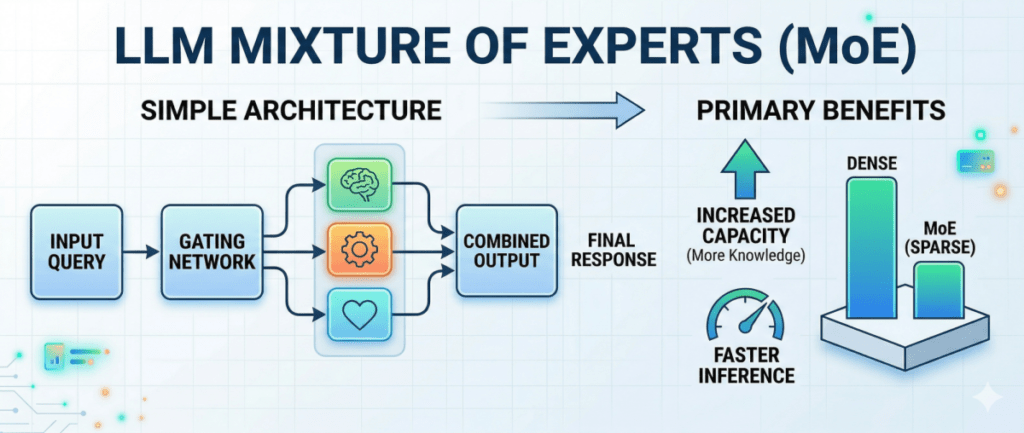
Some models use an architecture called Mixture of Experts (MoE). Instead of one large neural network where every parameter fires on every query, MoE models contain multiple specialist sub-networks (“experts”) and route each token through only a subset of them.
The practical implication: a MoE model can have a very large total parameter count, but only a fraction of those parameters are active per query. While only a subset of experts are active for any given token, all experts must reside in memory to enable fast switching, so the main resource benefit of MoE is in reducing compute requirements rather than memory usage. MoE models do provide better generation speed compared to dense models with the same memory footprint, since they activate fewer parameters per token.
DeepSeek and several Qwen models use this architecture. It’s why you’ll see model names like “35B-A3B”, meaning 35 billion total parameters, but only 3 billion active per token.
Hardware requirements
The key number is your GPU’s VRAM (Video RAM). When a model runs on your GPU, its weights need to fit in VRAM. The rough formula for Q4 quantization, verified across multiple sources:
VRAM (GB) ≈ Parameters (B) × 0.5, plus 2-4 GB of overhead for the inference engine and KV cache (the memory used to track conversation context).
Here is a interactive calculator (from 2025). Also, see some clear calculations and gotchas here (this last one is a must read! It covers so much).
Practical VRAM needs at Q4 quantization at LM Studio (source)
| Model size | VRAM (Q4) | Sweet spot for |
|---|---|---|
| 7B | ~5-7 GB | Chat, summarization, simple code |
| 13B | ~8-10 GB | Better reasoning, code generation |
| 30-32B | ~16-20 GB | Strong across most tasks |
| 70B | ~35-40 GB | Near frontier-level, needs high-end or multi-GPU |
To be honest the above table seems to be setting unrealistic expectations, but it’s directly from the website…
Anyway, when a model exceeds available VRAM, inference engines can offload excess layers to system RAM, but tests show models running up to 30x slower when overflowing into system RAM compared to fitting entirely in VRAM. So fitting your target model in VRAM matters a lot.
GPU tiers in practice (source)
- RTX 3060 12GB (~$300 used): runs 7B comfortably, a solid entry point
- RTX 4060 Ti 16GB (~$400 used): the enthusiast sweet spot, handles 13B well and squeezes into 30B territory
- RTX 4090 24GB (~$1,200): runs 30B confidently, can push 70B with aggressive quantization
- Dual GPU or workstation grade: 70B without compromise
On system RAM: aim for at least as much as your VRAM, plus headroom for your OS. 32 GB is a comfortable minimum for most setups.
No dedicated GPU
Not everyone has an NVIDIA card. Plenty of people want to run a local LLM on a work laptop, an older desktop with integrated graphics, or a mini PC. The honest answer: it works, but you will feel the difference.
Without a dedicated GPU, the model runs on your CPU, using system RAM. The bottleneck is memory bandwidth: a discrete GPU’s dedicated VRAM sets a hard ceiling on model size, and on conventional hardware the GPU accesses model weights without PCIe bus transfer overhead. Without it, GPU VRAM bandwidth typically runs at 500-1,000 GB/s while system RAM sits at 50-100 GB/s. That gap hits token generation directly. Where a mid-range GPU pushes 30-50 tokens per second on a 7B model, a CPU-only setup on the same model typically manages 3-10 tokens per second. Usable for batch tasks you’re not watching in real time, but noticeably slow for interactive chat.
Integrated graphics (Intel Iris Xe, AMD Radeon integrated) do not help much. Most inference tooling either ignores them or offloads only a handful of model layers there. LM Studio is one exception: its Vulkan-based offloading makes better use of integrated GPUs on Windows than Ollama does, so it’s worth trying if that’s all you have.
Realistic expectations by machine (source)
| Machine | RAM | Model ceiling | Expected speed |
|---|---|---|---|
| Budget laptop (8 GB) | 8 GB | 3B-4B only | 1-3 tokens/sec |
| Mid-range laptop (16 GB) | 16 GB | 7B-8B (Q4) | 3-8 tokens/sec |
| Well-specced laptop (32 GB) | 32 GB | 13B (Q4), tight | 5-10 tokens/sec |
| Desktop, high-end laptop (32-64 GB) | 32-64 GB | 13B-30B (Q4) | Slow on larger models |
Two things worth knowing for CPU-only setups.
- First, RAM speed matters more than you’d expect: DDR5-5600 gives roughly 50% more bandwidth than DDR4-3200, which directly translates to faster token generation on CPU
- Second, always run in dual-channel mode (two matched memory sticks, not one single stick) because single-channel halves your bandwidth and is one of the most common causes of worse-than-expected performance
On laptops specifically, thermal throttling is a real factor. Sustained LLM inference is a heavy, constant load. Many thin-and-light machines will throttle CPU speeds after a few minutes to manage heat. What starts at 6 tokens per second can quietly drop to 3 once the chassis warms up.
Windows vs Linux vs Mac
Some notable differences between OS and hardware types.
Windows
The most accessible entry point. Ollama and LM Studio both have polished installers, and NVIDIA’s CUDA support works well out of the box. The main gap is AMD GPU support: ROCm (AMD’s CUDA equivalent) is essentially non-functional on Windows for LLM inference. If you have an AMD card and want to use it properly, you need Linux.
Linux
Where most LLM tooling is built and tested first. It’s the right choice for home lab server setups, and the only platform where AMD GPU support is genuinely viable. vLLM is Linux-native and runs best here.
Mac
Deserves its own full discussion, because it’s genuinely different.
Apple Silicon
On a conventional PC, the GPU has its own separate pool of memory called VRAM, soldered onto the graphics card. Everything else runs on regular system RAM. When you run a model that’s too large for the GPU’s VRAM, the excess has to spill over a slow bus (PCIe) into system RAM, and performance collapses.
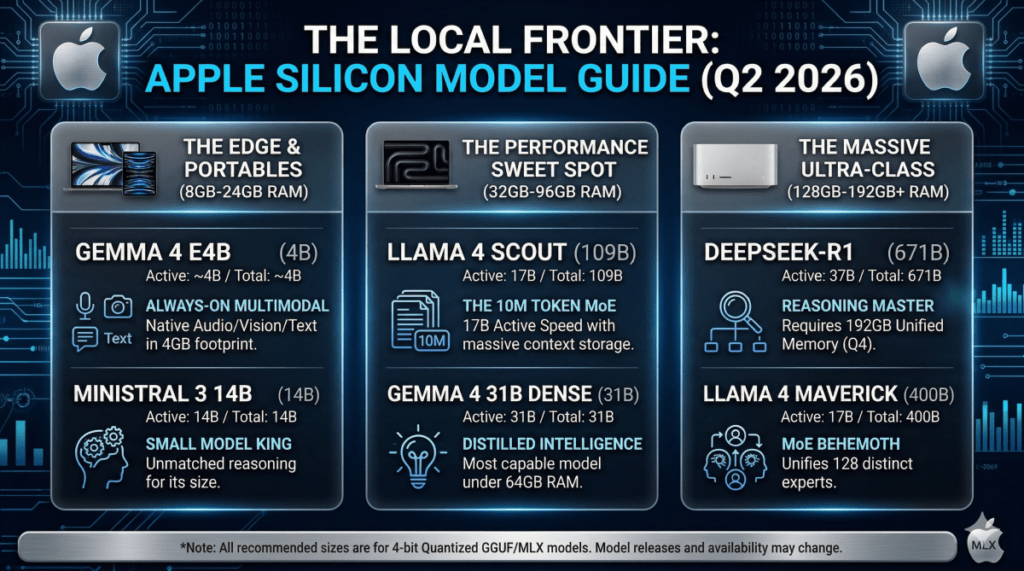
Apple Silicon’s unified memory architecture eliminates this bottleneck entirely. The CPU, GPU, and Neural Engine all share a single high-bandwidth memory pool, so the GPU accesses model weights without PCIe bus transfer overhead. In practical terms, a Mac with 64 to 124 GB of unified memory can load and run models that simply do not fit on any single consumer NVIDIA GPU.
The software side has matured significantly too. Apple’s MLX framework was built from the ground up for this architecture. Because arrays in MLX live in shared memory, the CPU and GPU can operate on the same data without copying it between memory pools, something that would require explicit transfers on any conventional hardware. Research comparing inference frameworks on Apple Silicon found that MLX based tools consistently exceeded llama.cpp throughput by 21% to 87% across models ranging from 0.6B to 30B parameters. And as of Ollama 0.19, Ollama now uses MLX on Apple Silicon, with testing showing decode performance jumping from 58 tokens/sec without MLX to 112 tokens/sec with it.
There are honest tradeoffs to name. For models that do fit in GPU VRAM, a high-end NVIDIA card generates tokens faster. The RTX 4090‘s raw bandwidth advantage is there for 7B and 13B workloads. CUDA tooling is also more mature: vLLM, TensorRT-LLM, and the broader NVIDIA ecosystem have no equivalent on Mac. And AMD cards are not supported at all.
But for anyone who wants to run models in the 30B-70B range on a single quiet, power-efficient machine, the Mac with 64 GB or more of unified memory is IMHO hard to beat right now.
Quick reference by Apple Silicon config (source)
| Chip | Max Memory | Bandwidth | GPU Cores | Best Model Tier (Q4) |
|---|---|---|---|---|
| M4 | 32GB | ~120 GB/s | 10 | 9B-14B |
| M4 Pro | 48GB | ~200 GB/s | 20 | 27B-32B |
| M4 Max | 128GB | ~400 GB/s | 40 | 70B, 122B-A10B |
| M5 | 24GB | 153 GB/s | — | 9B |
| M5 Pro | 64GB | 307 GB/s | 20 | 32B, Qwen 3.5 35B-A3B |
| M5 Max | 128GB | 614 GB/s | 40 | 70B+, Qwen 3.5 122B-A10B |
Random bits
Some last random stuff that didn’t come up yet.
The first load is slow
Model weights have to be read from disk into memory before inference can start. Any model can take several minutes to load. Once loaded, it stays in memory until you explicitly unload it.
Context length eats memory
The longer your conversation, the more VRAM the KV cache consumes. A model that runs fine on a short prompt can run out of memory mid-conversation. Most tools let you configure maximum context length. Lower it if you’re running tight on memory.
Token speed varies wildly
A 7B model on a mid-range GPU might do 40-60 tokens per second. A 70B model on the same GPU, partially offloaded to CPU, might do 2-5. This is worse than watching paint dry. Know what to expect before you pick your model.
Final thoughts
Local LLMs have crossed the threshold from interesting experiment to genuinely useful tool. The software has matured, the models have gotten dramatically better, and the hardware requirements (while real) are no longer out of reach. You don’t need a data center anymore.
The privacy angle alone is worth it for a lot of use cases. And once you’ve run your first query against a 30B model locally, seeing a thoughtful response materialize on your screen with nothing leaving your network, it feels a little like magic.
Next
For a cybersecurity blog, there has not been a lot of security lately. From next week, that is going to change. I build a cybersecurity dashboard, that collects all important security news and gives me an indication how scared we should be.
Stay tuned!